AI Hardware
Tools
Free tools to plan, compare, and optimize your AI hardware setup. No sign-up, no downloads — just precise VRAM math and real benchmarks.
Live Catalog Trust Strip
Tool outputs are grounded in live model and GPU records, so fit checks prioritize decision accuracy over inflated catalog-size claims.
These are the three real VRAM thresholds for local AI in 2026. Below 8 GB, only small models like Phi-3 Mini or Gemma 2B. Above 24 GB, you can run Llama 3.1 70B with partial offloading.
— RunAIatHome Hardware Tools — validated VRAM thresholds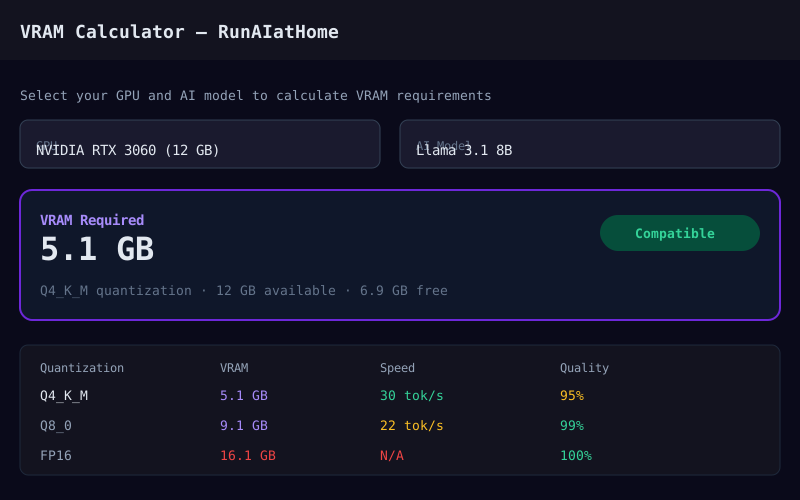
VRAM Calculator
Check if your GPU has enough VRAM to run any AI model. Enter your GPU and model to see memory requirements, quantization options, and performance estimates.
Open Tool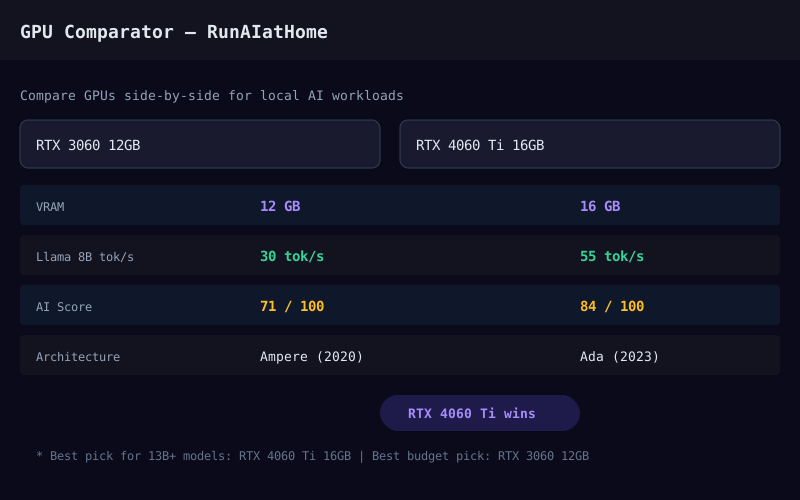
GPU Comparator
Compare GPUs side-by-side for AI workloads. See VRAM, bandwidth, tensor cores, AI benchmarks, and price-to-performance ratios across NVIDIA, AMD, and Intel.
Open Tool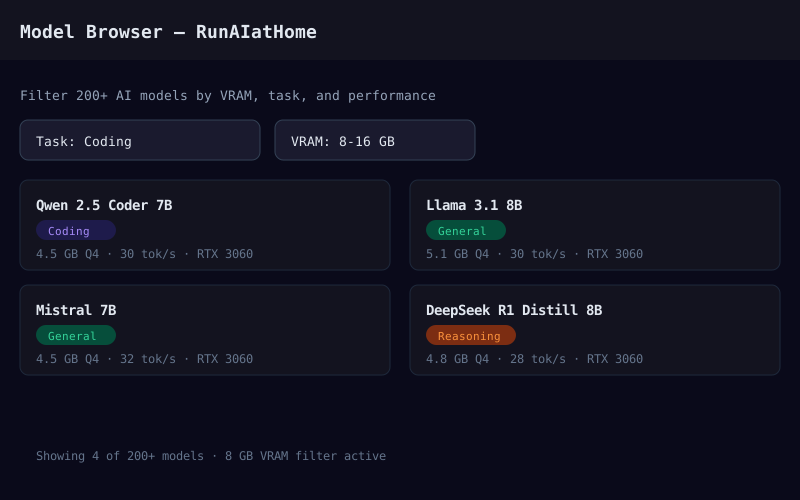
Model Browser
Explore popular AI models and their exact hardware requirements. Filter by category, size, and VRAM needs. Find the best model for your GPU.
Open Tool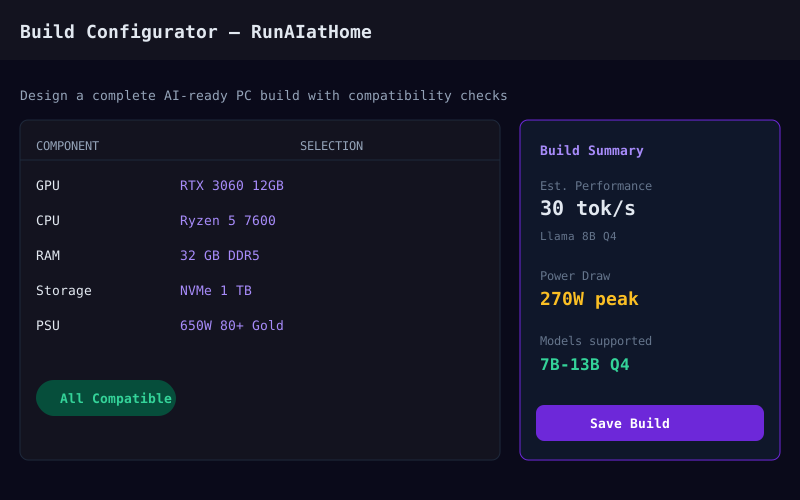
Build Configurator
Design a complete AI-ready PC build. Select components with real-time compatibility checks, power budget calculations, and estimated performance.
Open Tool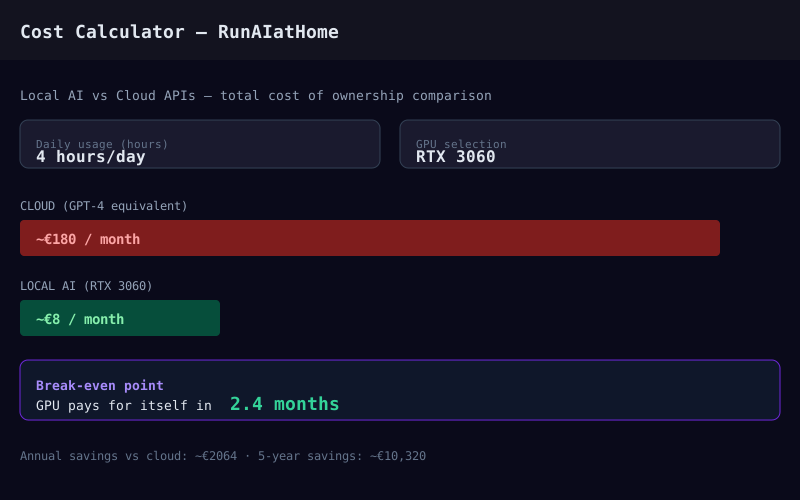
Cost Calculator
Compare the total cost of running AI locally versus cloud APIs. Factor in hardware, electricity, and API pricing to see which option saves you money.
Open ToolGPU Finder
"I know the model class" flow: pick your target workload class first, then get ranked GPUs by fit, performance, and budget instead of guided quiz discovery.
Open ToolQuiz: Which GPU do I need?
Answer 5 questions about your use case, budget, and operating system. Get a personalized GPU recommendation with direct purchase links.
Open ToolCalculator: Local vs Cloud
Calculate monthly savings for local AI on your own GPU versus paying for GPT-4, Claude, or Gemini.
Open ToolPerformance Leaderboard
Rank GPUs by real inference speed on popular models. See tokens per second for Llama, Mistral, and Phi to pick the fastest GPU within your budget.
Open ToolBudget Planner
Plan your AI hardware investment within your budget. Set your spending limit and get a build optimized for maximum performance per dollar.
Open ToolWhy RunAIatHome ships local-AI-specific tooling
Running AI models on your own hardware forces technical decisions that simply don't exist in cloud AI. How much VRAM does the model you want actually need? Can your GPU load it fully, or will it offload to system RAM? Is it worth investing in a more expensive GPU if your current one already works? When does hardware pay back against API spend?
These calculators and interactive tools are built to answer those questions with real data, not vague estimates. From the VRAM calculator — which computes exact memory consumption for any model and quantization — to the budget planner — which surfaces the optimal build for every investment tier — every tool is designed for the enthusiast who wants to make informed technical decisions.
How to use the tools in order
- 1. Start with the GPU Quiz if you don't yet know what hardware you need. 5 questions about your use case, budget, and OS and you get a personalized recommendation with a direct purchase link.
- 2. Use the GPU Finder if you already know what kind of model you want to run (7B, 13B, 70B, image) but not which GPU to buy. It ranks options by real-world performance on that model class.
- 3. Check compatibility with the VRAM Calculator before you download a model. Plug in your GPU and the target model to see if it fits in VRAM or if you need to drop the quantization.
- 4. Run the ROI numbers with the Cost Calculator if you're justifying the spend. It shows what you currently pay for APIs and how many months it takes the hardware to break even.
Minimum recommended hardware to get started
If you don't have hardware yet and you're evaluating whether to start with local AI, here's the executive summary:
- GPU: 8 GB of VRAM minimum for 7B models. 12–16 GB recommended if you want to experiment with 13B models. The RTX 3060 12 GB is the community's most popular entry point.
- System RAM: 32 GB minimum. 16 GB can work but you'll see swapping during model load.
- Storage: NVMe SSD, at least 1 TB. Models range from 4 GB (7B at Q4) to 40+ GB (70B at Q4). An HDD slows model loading significantly.
- Software: Ollama (recommended for beginners), LM Studio (GUI), or llama.cpp (maximum control). All free and open source.